Compress Images Online
CompressReduce a JPEG, PNG or WebP to a smaller file — by quality, or down to an exact size in KB. Nothing is uploaded.
Compression settings
80 is the web default. Below 50 the artefacts start to show.
JPEG, PNG, WebP · up to 20 MB
- Processed on your device
- No image upload
- No account
- No watermark
Compressing an image means storing the same picture in fewer bytes, either by lowering the encoder's quality or by naming the file size you have to hit and letting the encoder find the quality that fits it. On Resizo you pick By quality or To a target size, type the number, add a JPEG, PNG or WebP and press Compress image — the result reports what the file really weighs rather than an estimate. Every one of those encodes runs inside this browser tab on your own device, on a compressor the page fetches from this site, so the picture never travels anywhere.
What this tool changes
- Pixels
- Decoded and written again
- EXIF
- Removed
- GPS
- Removed
- XMP
- Removed
- ICC profile
- Removed
- DPI record
- Removed — the new file claims no print size
- Transparency
- Depends on the format you save — PNG and WebP keep it, JPEG is flattened onto the background colour
How to compress an image
- Decide how you want to compress. Leave the slider on quality for a general reduction, or switch to a target size and type the number of kilobytes you need.
- Choose the image on your device. Drop a JPEG, PNG or WebP onto the panel above, or press Browse files. The limit is 20 MB per file, and the file stays where it is — there is no transfer step.
- Press Compress image. Your device re-encodes the picture and measures what came out. The panel prints the original size, the new size and the percentage saved.
- Download the smaller file. Check the numbers first. If the saving is not enough, move the slider or set a target size and run it again — there is no quota to use up.
Compress to an exact file size
A quality slider cannot answer “make this 100 KB”. Quality is a perceptual setting, and the number of bytes it produces depends entirely on the picture: a flat studio shot and a photo of a forest come out at wildly different sizes from the same setting.
So the target mode measures instead of guessing. Your device encodes the image, reads the real byte length back, and binary-searches the quality range for the best-looking version that still fits under your number — around eight encodes at most, none of which sends a byte anywhere. The result lands at or just below the target, never above it.
If even the smallest encode overshoots, you get told the smallest size actually achievable for that image rather than a file that misses the requirement. Job portals, government forms and university applications are the usual reason people need this, and they reject anything over the stated limit.
Which quality setting should I use?
Quality 90 keeps a file that still looks untouched next to the original and is the right choice when the image will be edited again later. Quality 80 is the web default and the setting to reach for when you are not sure — a 4 MB phone photo usually lands somewhere between 400 KB and 700 KB.
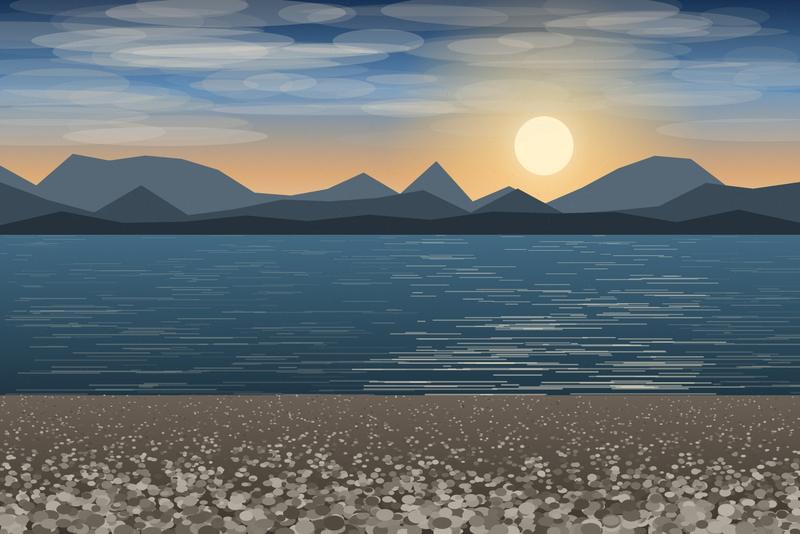
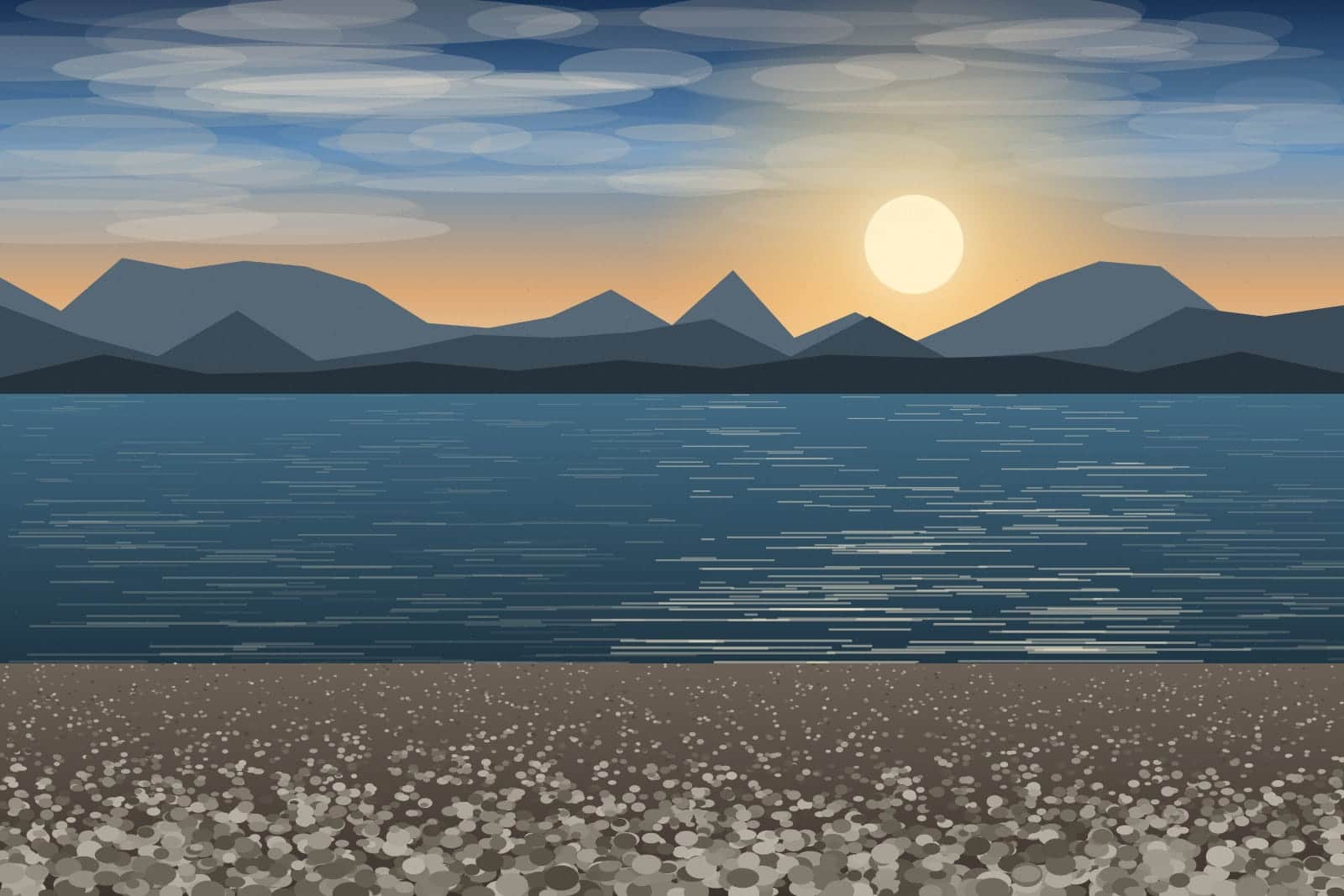
Quality 60 to 70 is aggressive but still fine for a photograph viewed on a screen at normal size. Below 50 the artefacts become visible: blocking around hard edges, and banding across skies and other smooth gradients.
JPEG, PNG and WebP each shrink differently
JPEG is lossy, so quality is a real dial and the file responds to it immediately. WebP is also lossy and typically produces a file 25 to 35 percent smaller than a JPEG at the same visual quality, which is why it is worth converting to.
PNG is lossless — it stores every pixel exactly, so there is no quality to trade. The slider reduces the number of colours in the image instead. That works extremely well on logos, icons, diagrams and screenshots, which use few colours to begin with, and badly on photographs, which end up banded. PNG compression reduces colours, so it is best for graphics, not photos.
When you need to compress an image
- Email attachments, where most providers cap a single message near 25 MB.
- WordPress and other CMS installs that refuse anything over a 2 MB upload limit.
- Shopify, Etsy and eBay product photos, where page weight affects how fast a listing loads.
- Chat apps such as Discord, which re-compresses or rejects anything over its own cap.
- Job portals and government forms that demand a photo or scan under 100 KB or 200 KB.
- Assembling a PDF, where a handful of full-resolution photos can make the document unusable.
Aiming at one number in particular
- A 20 KB ceiling — signature strips, avatars and thumbnail fields, where the picture usually has to get smaller too — Compress to 20 KB
- A 50 KB ceiling on an application photo or a scan, where the pixel size matters as much as the bytes — Compress to 50 KB
- A form that rejects anything over 100 KB — job portals and government uploads mostly — Compress to 100 KB
- A 200 KB ceiling, which is enough for a full-width photo that still looks right — Compress to 200 KB
Compressing without uploading: limits and what happens to your file
This tool accepts JPEG, PNG and WebP up to 20 MB per file and 8000 pixels on the longest side. The output keeps the format it came in with; use the converter if you want a different one.
The compressing is done by your own device — the file is opened where it already is and the smaller copy is written on the same machine, so nothing is transmitted and there is no copy of your photo anywhere else. Because the output is built from raw pixels, it carries no EXIF or GPS data and no longer says where the photo was taken.
The practical ceiling is your hardware rather than a policy. A photograph has to be unpacked into raw pixels before it can be re-encoded, which takes several times the file size in memory, so an old phone will refuse a job a laptop takes happily. The panel works that out before it starts and tells you what to try instead.
Frequently asked questions
Is compressing an image free?
Yes. Every tool on Resizo is free to use with no sign-up, no watermark and no daily quota. There are no accounts and nothing to buy — the tools are the whole product.
Can I compress an image without uploading it?
That is how this tool works, and the only way it works. The compressing software is loaded into the page, and your file is read, re-encoded and saved by your own device. It is never sent to us, so there is nothing for us to keep. The smaller file is written from raw pixels, so it carries no EXIF or GPS data either.
What is the largest file I can compress?
20 MB per file, and up to 8000 pixels on the longest side. If your photo is larger than that, resize it first — dropping the dimensions cuts the file size faster than any quality setting, and then compression has less work to do.
Will compressing an image lower the quality?
For JPEG and WebP, yes, by design — that is what lossy compression trades away. At quality 80 the difference is very hard to see on a screen, and the file is usually a fraction of the original. PNG is lossless, so it is handled differently and never re-encodes detail away.
Why did my PNG barely get smaller?
PNG stores every pixel exactly, so there is no quality to give up. The slider reduces the number of colours instead, which shrinks logos, icons and screenshots a great deal and photographs hardly at all. A photograph saved as PNG should be converted to JPEG or WebP.
Can I compress several images at once?
This tool takes one image at a time. The bulk resizer handles up to 20 images in a single pass and returns them as a ZIP, and it can change the output format for the whole batch at the same time.
What to do next
- Smaller dimensions shrink a file faster than quality alone — resize it Resize Image
- WebP usually beats JPEG at the same quality — convert it Convert Format
- Cropping away what you do not need also drops the size — crop it Crop Image
- iPhone photo that will not open? Convert HEIC to JPG Convert HEIC
- A signature for a form with a byte limit? The signature resizer crops, sizes and compresses it in one go Signature Resizer
- A set of scans that has to go out as one document? Make a PDF JPG to PDF
- Several PDFs the form will only take as one? Combine them Merge PDF
- Compress many JPG, PNG and WebP files to a maximum size each, then download them one by one or as a ZIP. Bulk Image Compressor
- Convert many JPEG, PNG, WebP and AVIF files to one format at once, then download them one by one or as a ZIP. Bulk Image Converter
- Make favicon.ico, the PNG icons and an Apple touch icon from one logo in your browser — nothing is uploaded. Favicon & App Icon Generator
- Crop and size a passport or ID photo to exact pixels, file size, format and DPI. Passport & ID Photo
- Fit an image to exact pixels and a maximum file size in one step — crop or pad, encode, write DPI and check the file before download. Image Size Fitter
- Lay out as many copies of a passport or ID photo as fit on 4 × 6, 5 × 7, Letter or A4 paper at exact physical size, as a JPEG or PDF to print at 100 %. Passport Photo Print Sheet
- Set the print resolution a JPEG or PNG claims, without re-encoding it. Change Image DPI
- See the EXIF, GPS, XMP and colour-profile data stored in a photo without uploading it — the file is read in your browser and never changed. Image Metadata Viewer
- Strip EXIF, GPS and XMP from a photo without touching its pixels. Remove Image Metadata
You are on the Compress Image tool.